How to check in guests with a phone (no app needed)
Last updated: November 3, 2026
On this page
Short answer
Create a staff link on the event page and send it to your door staff. They open it in any phone browser, allow the camera, and scan each guest’s QR ticket. No app download and no Shopify login. Check-in keeps working when the signal drops.
Before you start
Have a phone with a camera and a test ticket ready. You can email yourself one from the event page with Send test ticket. Try a scan before your guests arrive.
Create a staff link
Open the event and go to Check-in and attendees. Enter a Staff link label such as “Front door” and click Create staff link. Copy the link and send it to your door staff.
Anyone with the link can check people in, so share it only with your staff. You can revoke it at any time from the same list.
Open it on the phone and scan
Staff open the link in the phone’s browser, on iPhone or Android, and allow camera access. Then they point the camera at the guest’s QR code.
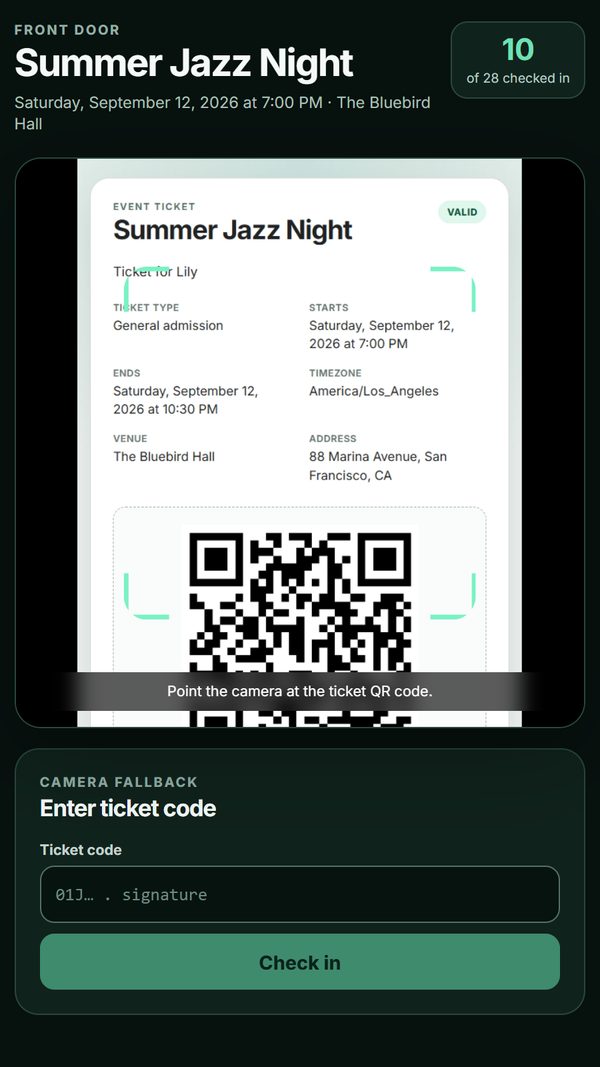
The scanner. The counter at the top shows how many guests are in. Read the result before the next guest
The result appears straight away:
- Valid ticket: let the guest in. The ticket is now used.
- Already checked in: the ticket was scanned before, and the screen shows when. Stop and check before letting anyone in.
- Wrong event, Void ticket or Unknown ticket: do not let the guest in with this ticket.
Tap Scan next for the next guest. If you checked someone in by mistake, tap Undo check-in.
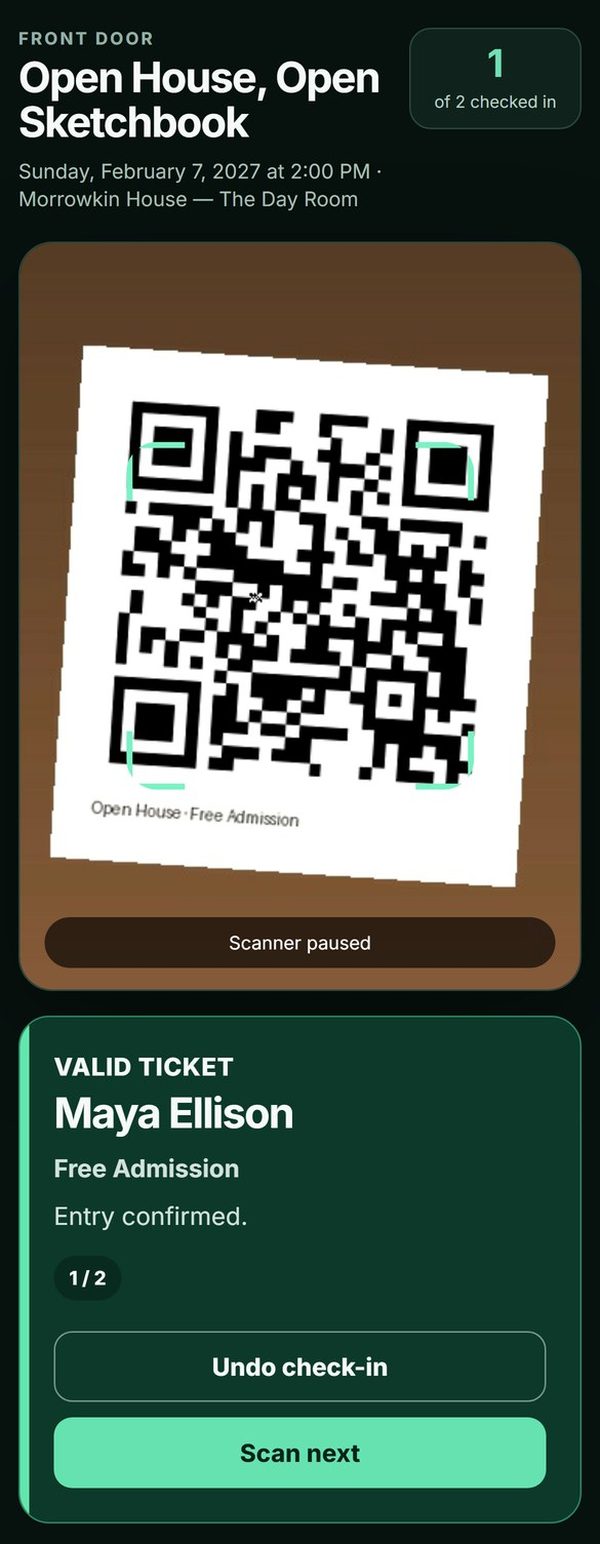
A valid ticket.
When the signal drops
Keep scanning. The scanner downloads the guest list when it opens, so it still tells valid tickets from unknown ones and still catches a second scan of the same ticket. Scans made offline are sent when the phone reconnects. Do not clear the browser while scans are waiting.
Two phones that are both offline cannot see each other’s scans. If you use two doors, a duplicate is only flagged once they reconnect.
More than one event at the same door
When you create the staff link, tick the other events the same door should admit under Also admit tickets for. The counter then adds them together.
Still stuck? Email us
Tell us what happened and which phone and browser you used.
We reply within 1 business day (JST).